Buy Crypto
Markets
Spot
FuturesBTC
Earn
Event Center
Rewards Hub
More
How to Install the MEXC App by Changing Your App Store Region to Hong Kong via BrowserHow to Install the MEXC App by Changing Your App Store Region to Hong Kong via Browser
Category List
Cancel

How to Install the MEXC App by Changing Your App Store Region to Hong Kong via Browser

This guide explains how to change your Apple Account country or region to Hong Kong through a browser by visiting account.apple.com on your computer or smartphone, then download the MEXC app from the App Store.

For iPhone users, changing the region directly in the App Store is a simpler option: How to Install the MEXC App by Changing Your App Store Region to Hong Kong (iPhone)

Changing your region is an official process provided by Apple (see the reference link at the end of this article). No app purchases or additional charges are required, and your existing MEXC account can be used without any changes.

1. Before Changing Your Region


Most users can change their region immediately. You only need to complete additional steps beforehand if any of the following apply:

  • You have an App Store balance (Apple Account balance): Use the remaining balance before changing your region. Apple does not allow region changes while a balance remains.
  • You have active subscriptions: Some subscriptions may prevent a region change while they are active. If prompted, follow the on-screen instructions to cancel them. You can check your subscriptions under Settings → your name at the top → Subscriptions.
  • You are part of a Family Sharing group: You may be unable to change your region. In this case, create a new Hong Kong Apple Account instead. Your current Family Sharing setup will remain unchanged: How to Install the MEXC App by Creating a New Hong Kong Apple Account
  • You have pre-orders, movie rentals, or season passes: Wait until they are completed or expire before changing your region.

If you are unsure whether any of these apply, you can proceed with the steps below. If something prevents the change, Apple will display the relevant message during the process.

Your iCloud data is separate from your App Store region. Changing your region will not affect the apps, photos, or contacts currently stored on your iPhone. You can switch your region back to Japan at any time using the same steps.

2. Step-by-Step Guide


Step 1: Sign in to account.apple.com


Open account.apple.com in your browser (such as Safari or Chrome) and sign in with your Apple Account.

Step 2: Open Country/Region under Personal Information


After signing in, go to Personal Information → Country/Region. Your current region (Japan) will be displayed.
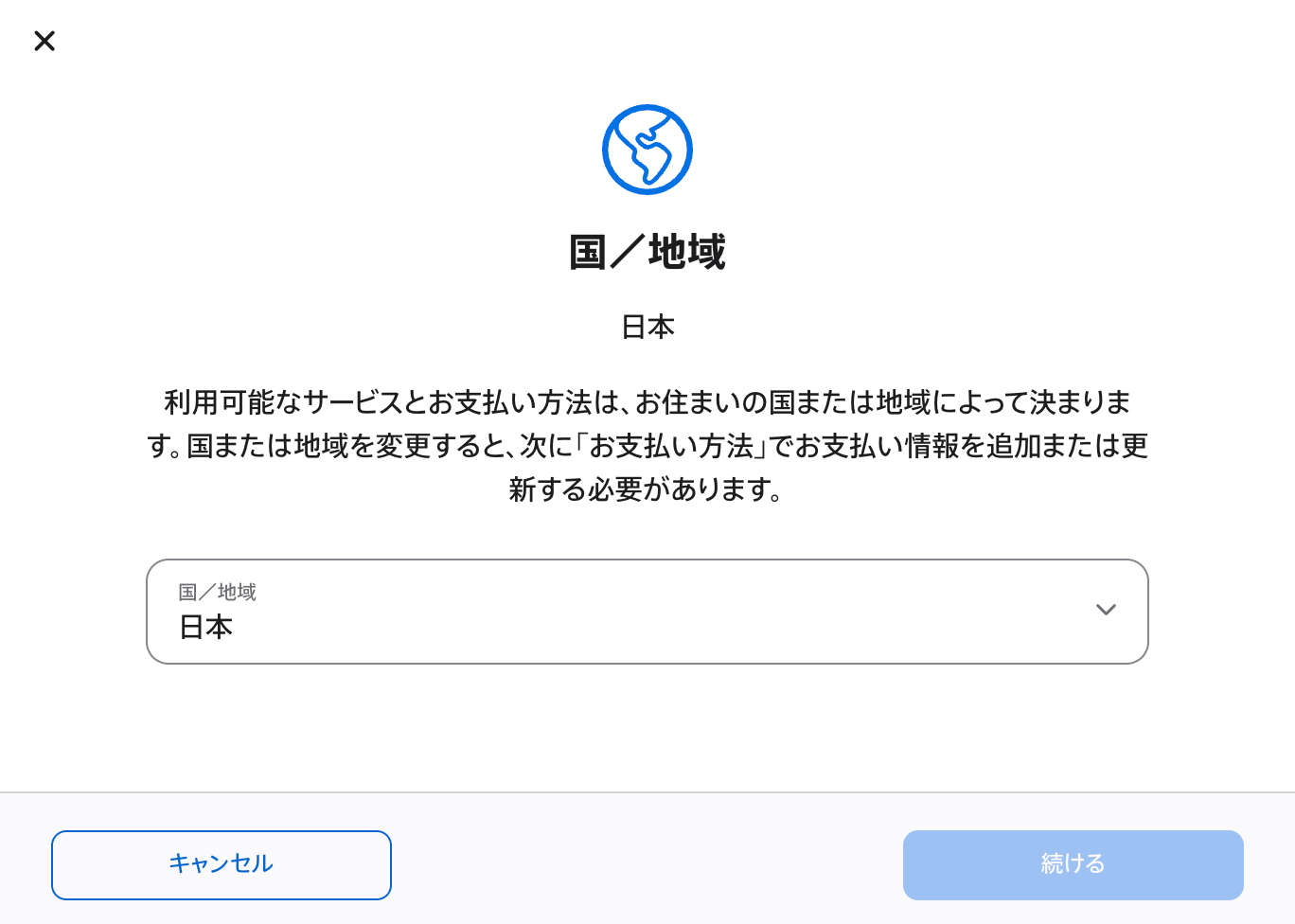

Step 3: Change your region to Hong Kong


From the Country/Region dropdown menu, select Hong Kong and click Continue.


Step 4: Confirm the region change


At the confirmation page, review the information and click Continue.


Step 5: Agree to the terms and conditions


Review the Apple Media Services Terms and Conditions, then click Agree and Continue.


Step 6: Set the payment method to None and save the changes


On the payment method page, select None. No payment will be charged.

For the billing address, enter a Hong Kong address. It does not need to be your own address. You can search for a hotel in Hong Kong on Google Maps and use the listed address.

If a postal code field appears, you can leave it blank because Hong Kong does not use postal codes.

This address is only used by Apple to verify your region. It is not used for billing or mail, and no charges can occur because the payment method is set to None.

Click Save Changes to complete the process. If you exit before clicking Save Changes, the changes will not be saved.


Step 7: Download the MEXC app from the App Store


After the region change is complete, open the App Store on your iPhone, search for "MEXC", and download the app. You can log in with your existing MEXC account immediately after installation.

If you encounter any issues during installation, visit the MEXC Help Center or contact the official MEXC community for support.


3. FAQ


3.1 How do I switch back to Japan?


Follow the same steps:

Go to account.apple.com → Personal Information → Country/Region

Select Japan and complete the same process. You may need to set your payment method and billing address (Japanese address) again.

The MEXC app you downloaded will continue to work normally.

3.2 How do I update the MEXC app?


Update the app from the App Store while your region is set to Hong Kong.

If you need to update apps that are only available in the Japanese App Store, such as banking or payment apps, temporarily switch your region back to Japan first.

If you use MEXC regularly, keeping your region set to Hong Kong may be more convenient.

3.3 What if I select Hong Kong but cannot complete the change?


Check the following:
  • Whether you have an App Store balance remaining
  • Whether any active subscriptions need to be canceled
  • Whether you are part of a Family Sharing group

If your remaining balance is too small to use, contact Apple Support.

If you cannot complete the change on your iPhone, you can also change your region through a browser at account.apple.com: How to Install the MEXC App by Changing Your App Store Region to Hong Kong via Browser

3.4 Do I need to create a new MEXC account?


No. Simply log in with your existing MEXC account.

3.5 Does it cost anything? Do I need a Hong Kong phone number or credit card?


No. Select None as the payment method to avoid any charges. A Hong Kong phone number or credit card is not required.

3.6 Is something wrong when the App Store switched to Chinese?


No. After changing your region to Hong Kong, the App Store interface will display in Traditional Chinese. To switch back, change your region to Japan using the same steps.

3.7 Will my Japanese apps and data be removed?


No. Your existing apps, photos, and contacts will remain unchanged. You will not be logged out of your accounts. Your iCloud data is separate from your App Store region and will not be affected.

Note that while your region is set to Hong Kong, you may not be able to update or download apps that are exclusive to the Japanese App Store, such as some banking or payment apps. Switch your region back to Japan if needed.

3.8 What happens to my current App Store payment method?


After changing your region, your App Store payment method will be set to None.

Your Apple Pay cards and payment information stored in Wallet will not be deleted. When you switch back to Japan, you can set up your payment method again.


How to Install the MEXC App by Changing Your App Store Region to Hong Kong via Browser

This guide explains how to change your Apple Account country or region to Hong Kong through a browser by visiting account.apple.com on your computer or smartphone, then download the MEXC app from the App Store.

For iPhone users, changing the region directly in the App Store is a simpler option: How to Install the MEXC App by Changing Your App Store Region to Hong Kong (iPhone)

Changing your region is an official process provided by Apple (see the reference link at the end of this article). No app purchases or additional charges are required, and your existing MEXC account can be used without any changes.

1. Before Changing Your Region


Most users can change their region immediately. You only need to complete additional steps beforehand if any of the following apply:

  • You have an App Store balance (Apple Account balance): Use the remaining balance before changing your region. Apple does not allow region changes while a balance remains.
  • You have active subscriptions: Some subscriptions may prevent a region change while they are active. If prompted, follow the on-screen instructions to cancel them. You can check your subscriptions under Settings → your name at the top → Subscriptions.
  • You are part of a Family Sharing group: You may be unable to change your region. In this case, create a new Hong Kong Apple Account instead. Your current Family Sharing setup will remain unchanged: How to Install the MEXC App by Creating a New Hong Kong Apple Account
  • You have pre-orders, movie rentals, or season passes: Wait until they are completed or expire before changing your region.

If you are unsure whether any of these apply, you can proceed with the steps below. If something prevents the change, Apple will display the relevant message during the process.

Your iCloud data is separate from your App Store region. Changing your region will not affect the apps, photos, or contacts currently stored on your iPhone. You can switch your region back to Japan at any time using the same steps.

2. Step-by-Step Guide


Step 1: Sign in to account.apple.com


Open account.apple.com in your browser (such as Safari or Chrome) and sign in with your Apple Account.

Step 2: Open Country/Region under Personal Information


After signing in, go to Personal Information → Country/Region. Your current region (Japan) will be displayed.


Step 3: Change your region to Hong Kong


From the Country/Region dropdown menu, select Hong Kong and click Continue.


Step 4: Confirm the region change


At the confirmation page, review the information and click Continue.


Step 5: Agree to the terms and conditions


Review the Apple Media Services Terms and Conditions, then click Agree and Continue.


Step 6: Set the payment method to None and save the changes


On the payment method page, select None. No payment will be charged.

For the billing address, enter a Hong Kong address. It does not need to be your own address. You can search for a hotel in Hong Kong on Google Maps and use the listed address.

If a postal code field appears, you can leave it blank because Hong Kong does not use postal codes.

This address is only used by Apple to verify your region. It is not used for billing or mail, and no charges can occur because the payment method is set to None.

Click Save Changes to complete the process. If you exit before clicking Save Changes, the changes will not be saved.


Step 7: Download the MEXC app from the App Store


After the region change is complete, open the App Store on your iPhone, search for "MEXC", and download the app. You can log in with your existing MEXC account immediately after installation.

If you encounter any issues during installation, visit the MEXC Help Center or contact the official MEXC community for support.


3. FAQ


3.1 How do I switch back to Japan?


Follow the same steps:

Go to account.apple.com → Personal Information → Country/Region

Select Japan and complete the same process. You may need to set your payment method and billing address (Japanese address) again.

The MEXC app you downloaded will continue to work normally.

3.2 How do I update the MEXC app?


Update the app from the App Store while your region is set to Hong Kong.

If you need to update apps that are only available in the Japanese App Store, such as banking or payment apps, temporarily switch your region back to Japan first.

If you use MEXC regularly, keeping your region set to Hong Kong may be more convenient.

3.3 What if I select Hong Kong but cannot complete the change?


Check the following:
  • Whether you have an App Store balance remaining
  • Whether any active subscriptions need to be canceled
  • Whether you are part of a Family Sharing group

If your remaining balance is too small to use, contact Apple Support.

If you cannot complete the change on your iPhone, you can also change your region through a browser at account.apple.com: How to Install the MEXC App by Changing Your App Store Region to Hong Kong via Browser

3.4 Do I need to create a new MEXC account?


No. Simply log in with your existing MEXC account.

3.5 Does it cost anything? Do I need a Hong Kong phone number or credit card?


No. Select None as the payment method to avoid any charges. A Hong Kong phone number or credit card is not required.

3.6 Is something wrong when the App Store switched to Chinese?


No. After changing your region to Hong Kong, the App Store interface will display in Traditional Chinese. To switch back, change your region to Japan using the same steps.

3.7 Will my Japanese apps and data be removed?


No. Your existing apps, photos, and contacts will remain unchanged. You will not be logged out of your accounts. Your iCloud data is separate from your App Store region and will not be affected.

Note that while your region is set to Hong Kong, you may not be able to update or download apps that are exclusive to the Japanese App Store, such as some banking or payment apps. Switch your region back to Japan if needed.

3.8 What happens to my current App Store payment method?


After changing your region, your App Store payment method will be set to None.

Your Apple Pay cards and payment information stored in Wallet will not be deleted. When you switch back to Japan, you can set up your payment method again.